What it is
The worker profile is the single record for one person across their whole time with you. It pulls together who they are, where they work, what they’re paid against, the tickets and qualifications they hold, their leave balances, their skills and their emergency contacts — so you’re never piecing a person together from four systems.
It matters because almost every people decision starts here. Before you transfer someone, approve their leave, action a compliance flag or run a review, you open the profile to see the ground truth. Because the record updates itself as things happen — a placement, a verified ID, an expiring ticket — what you read is current, not last month’s snapshot.
When to use it
- You need the full picture on one person before making a change
- A compliance or verification flag points you at a worker
- You’re checking someone’s leave balance, tickets or pay class
- You want to confirm an emergency contact or employment detail
- A manager has asked who someone reports to and where they sit
How it works
Step by step.
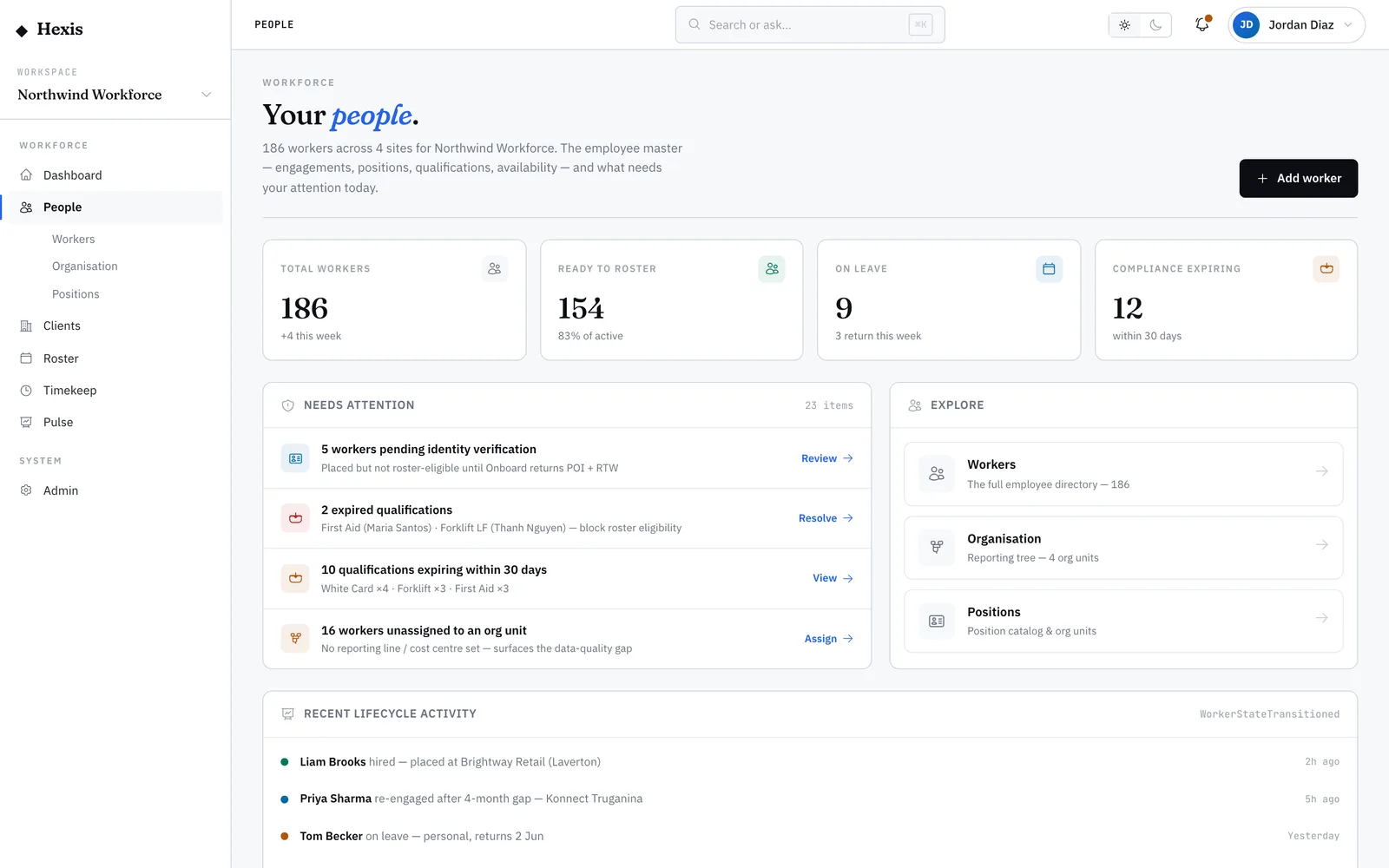
- 1
Find the worker
Search the directory by name or staff reference, or arrive from an attention queue, a roster or a case. Open the person to land on their profile.
- 2
Read the identity header
The top of the profile confirms who you’re looking at — name, staff reference, status and current availability — so you know you have the right person.
- 3
Scan the facet grid
Below the header, each facet covers one part of the record: employment, position and team, pay classification, qualifications, leave entitlements and skills. Open the one you need.
- 4
Check compliance and tickets
The qualifications facet shows which tickets are current, which are expiring and which have lapsed, so you can see at a glance whether the person is good to deploy.
- 5
Take the next action
From the profile you can move into a transfer, a document upload, a leave decision or a skills check without losing your place.
Worked example
Follow it through.
The scenario
A coordinator at Northwind Workforce asks whether Maya Chen is right for a security shift at Riverside Plaza.
- 1 Search the directory for "Maya Chen" and open her profile.
- 2 The header confirms staff reference NW-0142, status Active, availability Available.
- 3 Open the qualifications facet — her security licence is current and expires 14 Mar next year.
- 4 Open the position facet — she’s a Security Officer assigned to Meridian Retail, Riverside Plaza.
- 5 Open leave — she has no approved leave clashing with the weekend.
The result
You confirm Maya is qualified, available and conflict-free, and reply to the coordinator with confidence — all from one screen.
Tips & notes
Good to know.
- The availability state on the header reflects approved leave and roster commitments, so you don’t have to cross-check the roster separately.
- An amber ticket means it’s expiring soon — flag it to learning and development before it lapses and blocks a deployment.
- Emergency contacts live on the profile too; keep them current as part of any onboarding or annual review.
- If you find two records for the same person, don’t edit both — merge them so history stays in one place.
When you’re done
You have the complete, current picture of one worker and can act on it without leaving the screen.