What it is
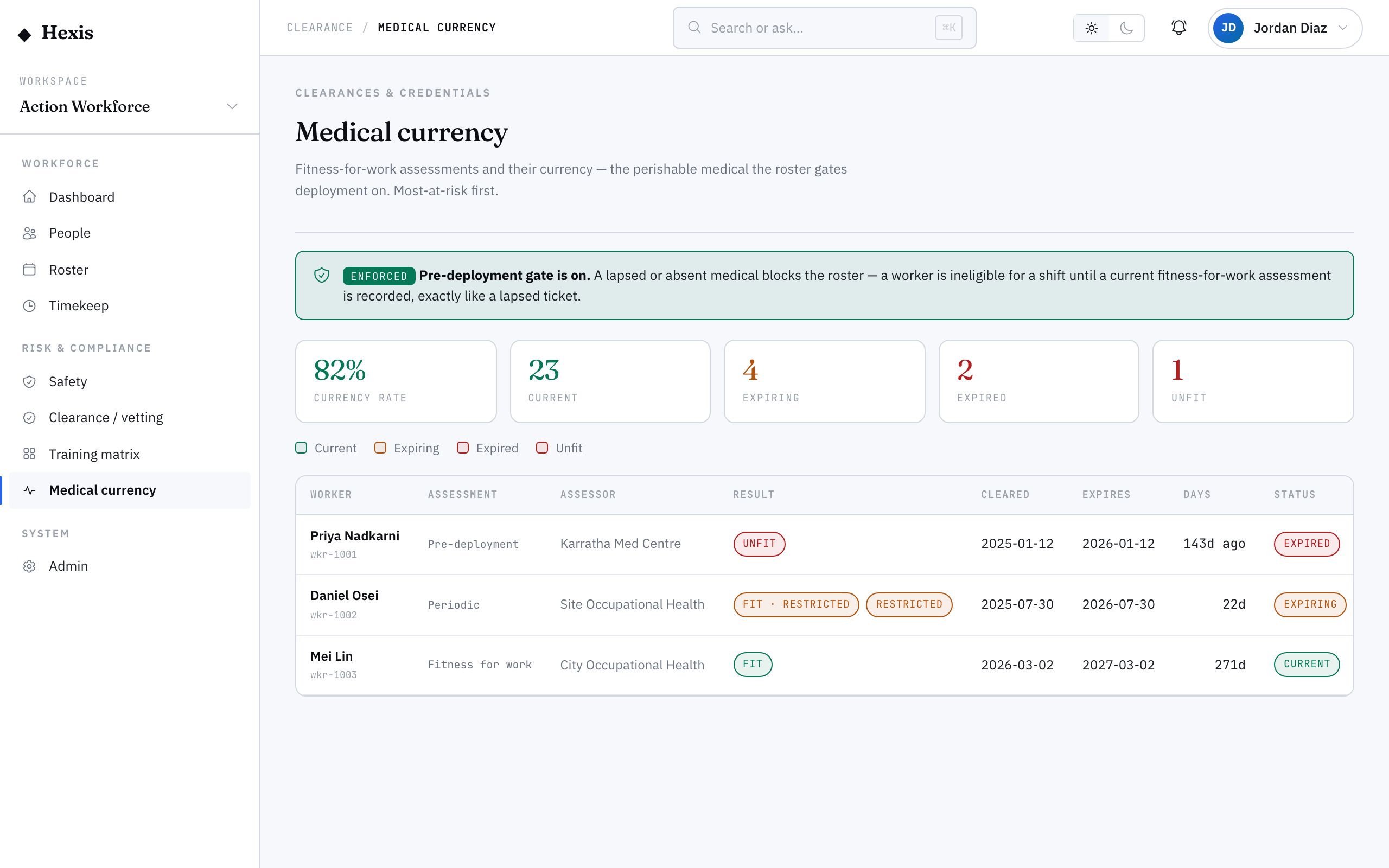
Medical clearances are the perishable health checks a worker must pass to do certain work — fitness-for-work examinations, pre-deployment medicals, role-specific health assessments. This view shows every worker’s medical and whether it is current, expiring, lapsed or marked unfit, all in one register, so you can see fitness across the workforce rather than chasing it person by person.
For remote or safety-critical work, medical currency is a gate, not a reminder. When the medical gate is switched on, a lapsed or missing medical blocks a worker from being rostered exactly the way a lapsed ticket does — the schedule simply will not place them until it is resolved. A clear banner tells you whether the gate is active so there is no doubt about what a lapse will do.
When to use it
- You are tracking fitness-for-work medicals across the workforce
- A worker’s medical is approaching its expiry
- You need to know whether a lapsed medical will block rostering
- A worker has been assessed and found temporarily unfit
- You are preparing a remote or safety-critical deployment
How it works
Step by step.
- 1
Open the medical register
Every worker with a fitness-for-work medical is listed with its current state — current, expiring, lapsed or unfit.
- 2
Check the gate banner
The banner at the top tells you whether the medical-currency gate is enabled. If it is, a lapse or absence blocks rostering.
- 3
Sort by risk
Lapsed and unfit workers surface first, then those expiring soon, so the people who most affect deployment are in front of you.
- 4
Open a worker’s medical
Drill into a worker to see the examination dates, result and expiry, and to start a renewal if it is due.
- 5
Renew or update
Record a new examination result to refresh currency, or update a fitness status when an assessment changes.
Worked example
Follow it through.
The scenario
Coastline Logistics is sending a crew to the remote Harbour Point Terminal, where the medical gate is on.
- 1 Open the medical register; the banner confirms the medical-currency gate is enabled.
- 2 Daniel Cho’s pre-deployment medical shows "lapsed — 12 days overdue" at the top of the list.
- 3 Open his record and confirm a new examination is booked for Mon 9 Jun.
- 4 Record the new result once it arrives, which returns him to current.
- 5 Re-check the register — every crew member now reads current.
The result
Daniel’s medical is current again, the gate clears, and the whole Harbour Point crew is fit and rosterable for the deployment.
Tips & notes
Good to know.
- When the gate is on, a missing medical blocks deployment just like a lapsed ticket — there is no soft-warning grace period.
- An "unfit" status is different from "lapsed": the worker has a current medical but has been assessed as not fit for that work right now.
- Renew medicals early for remote crews — a lapse on a remote site is far harder to fix than one in town.
- The gate banner is the first thing to read; it tells you whether a lapse is a reminder or a hard stop on rostering.
When you’re done
Every worker’s fitness-for-work medical is visible and current, and no one with a lapsed or unfit medical reaches a gated deployment.