What it is
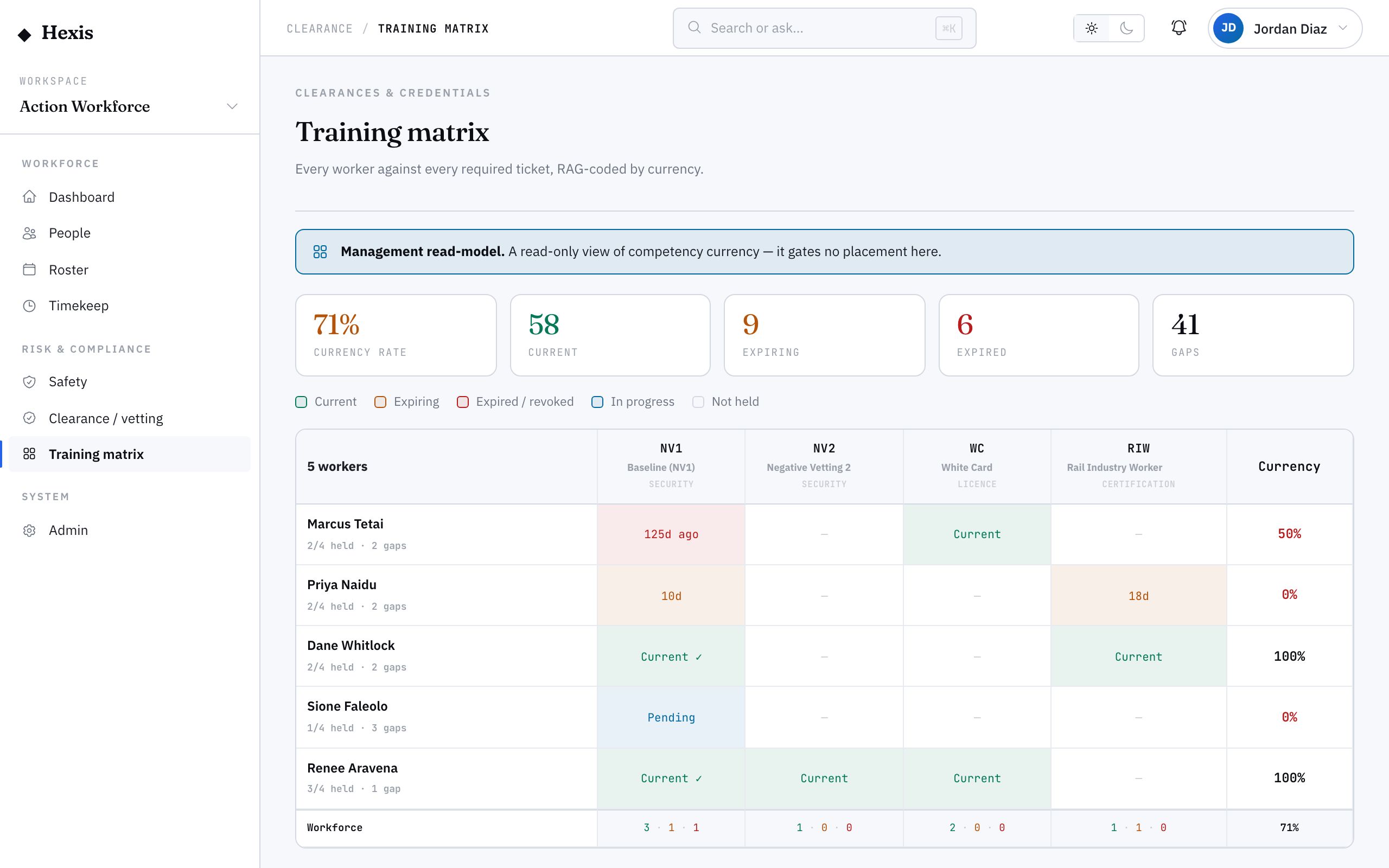
The clearance matrix is a single grid where the rows are your workers and the columns are the credentials they need. Each cell tells you, at a glance, whether that worker holds that ticket and what state it is in — current, expiring soon, lapsed, still in progress, or simply not held. It turns a thousand individual records into one readable wall of colour.
This is the view managers use to plan and to find gaps. Instead of opening worker after worker, you see coverage across the team in one screen: who is missing a required ticket, who is about to lapse, where you are thin on a particular competency. The grid reads itself — nothing to configure, nothing to publish — and the most at-risk workers float to the top.
When to use it
- You want a single coverage view across the whole team
- You are planning who can be deployed against a contract’s requirements
- You need to spot which workers are missing a required ticket
- You want to see where a competency is thin across the workforce
- A manager has asked for a one-page training-status picture
How it works
Step by step.
- 1
Open the matrix
The grid loads with workers down the side and the active clearance types across the top. Most-at-risk workers are listed first.
- 2
Read the cells
Each cell shows the state of that worker against that ticket — current, expiring, lapsed, in progress or not held — using a consistent colour code.
- 3
Find the gaps
Scan a column to see everyone missing or about to lose a particular ticket; scan a row to see one worker’s whole competency picture.
- 4
Spot thin coverage
A column with only a few current cells tells you that competency is under-resourced across the team.
- 5
Act from a cell
Open any cell to reach that clearance and start a renewal or verification where it is needed.
Worked example
Follow it through.
The scenario
You are staffing a Coastline Logistics contract at Docklands Distribution Centre that needs forklift and traffic-control tickets.
- 1 Open the matrix and look down the Forklift Operator column.
- 2 Six workers show current, two show expiring within 30 days, and Jack Mason shows "not held".
- 3 Look across the Traffic Controller column; only three are current — coverage is thin.
- 4 Open Jack Mason’s in-progress cell to confirm his forklift course completion date.
- 5 Note the two expiring tickets for renewal before the contract starts.
The result
You can see at a glance that forklift coverage is fine but traffic control is thin, and you have a short list of renewals to clear before deploying.
Tips & notes
Good to know.
- The matrix is read-only and always live — it derives from the same records as the register, so it never drifts.
- A "not held" cell is a deployment blocker for any role that requires that ticket; treat it as a gap to fill, not a warning.
- Read columns to manage a competency across the team, rows to manage one worker — both come from the same grid.
- Because at-risk workers sort to the top, the people you most need to act on are already in front of you.
When you’re done
You have a single, colour-coded picture of workforce coverage and an immediate list of gaps and renewals to address.