What it is
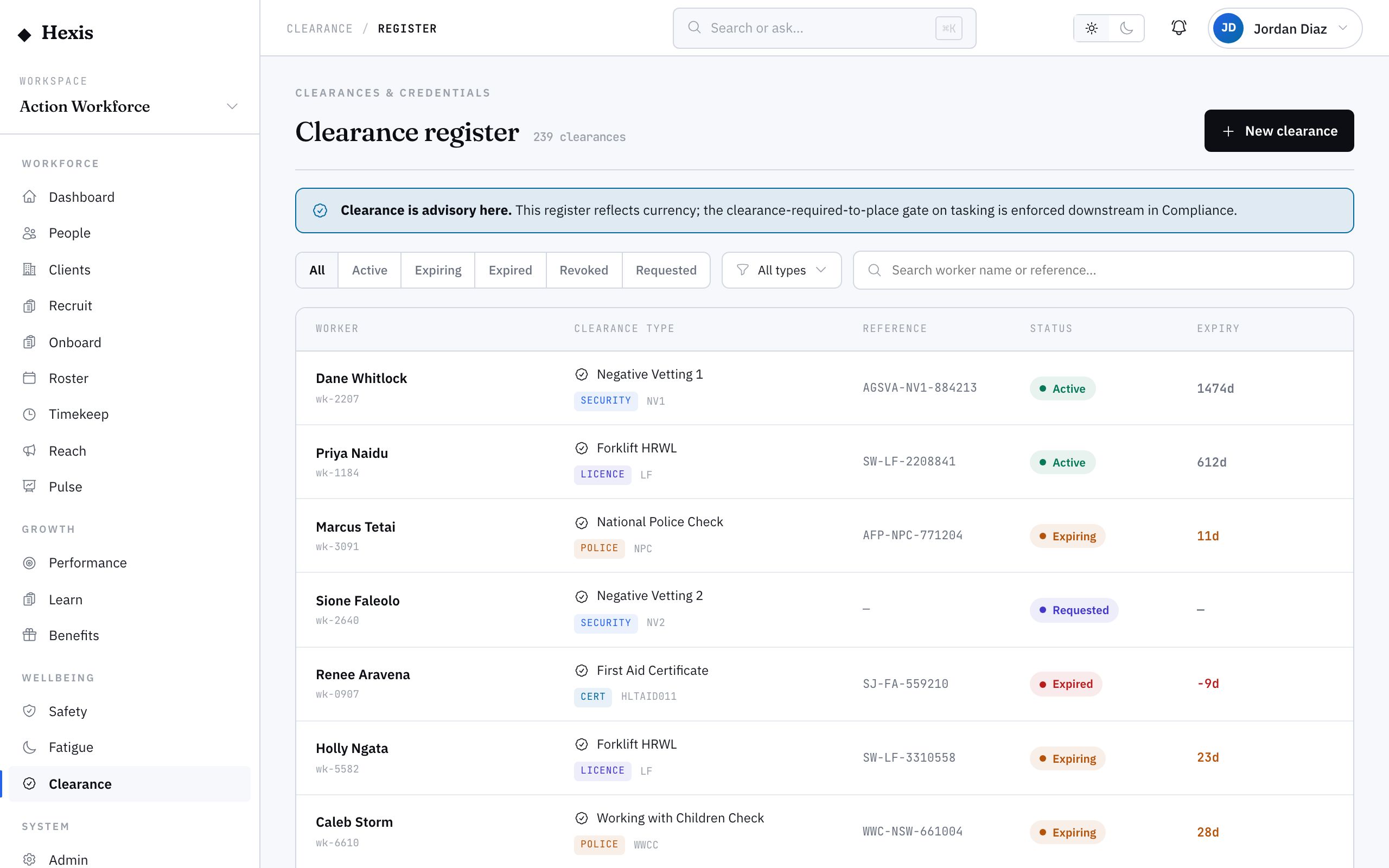
The clearance register is the master list of every credential your workforce holds — one row per clearance, showing who holds it, what it is, its reference, where it sits in its lifecycle and when it lapses. It is the daily scan-and-triage table: the place a compliance officer opens first to see the state of play across the whole organisation.
A filter bar lets you narrow to exactly what you care about — only the expiring ones, only a particular ticket type, or a single worker. From any row you drop into the full clearance detail to act. Where the expiry dashboard is the urgent queue, the register is the complete picture you reach for when you need to find, sort or report on credentials.
When to use it
- You want a single view of every clearance in the workforce
- You need to find one worker’s credentials quickly
- You are checking how many people hold a particular ticket
- You want to triage by status — requested, active, expiring or expired
- An auditor has asked for a list of who holds what
How it works
Step by step.
- 1
Open the register
The full table loads with every worker clearance. Each row shows the holder, the clearance type and code, a status pill, and the days remaining until expiry.
- 2
Filter by status
Narrow to a lifecycle stage — requested, granted, active, expiring, expired or revoked — to focus on the rows that need attention.
- 3
Filter by type or worker
Pick a clearance type to see everyone who holds it, or search a worker’s name to see just their credentials.
- 4
Read the row
The status pill and days-to-expiry tell you at a glance whether a clearance is healthy, due soon or already lapsed.
- 5
Open a clearance to act
Click any row to open the full clearance detail, where you can verify, renew, grant or revoke.
Worked example
Follow it through.
The scenario
Brightwater Health has asked which care workers hold a current first-aid certificate.
- 1 Open the clearance register and filter the type to First Aid Certificate.
- 2 Set the status filter to Active so lapsed entries drop away.
- 3 The table shows nine active first-aid holders, including Priya Nair and Aisha Rahman.
- 4 Two more sit in the Expiring band with under 30 days — note them for renewal.
- 5 Open Priya Nair’s row to confirm her verification record before reporting back.
The result
You have a clean, current list of first-aid holders for Brightwater Health, plus two flagged for renewal before they affect coverage.
Tips & notes
Good to know.
- Combine filters — a type plus the expiring status surfaces exactly who needs renewing for that one ticket.
- The days-to-expiry column goes negative for lapsed clearances, so a quick sort puts the real problems at the top.
- Use the worker search when someone calls about their own credentials — it is faster than scrolling.
- The register reflects every verification and renewal the moment it is recorded, so it is always live, never a snapshot.
When you’re done
You have found, filtered and triaged the exact set of clearances you needed, ready to act on or report from.