What it is
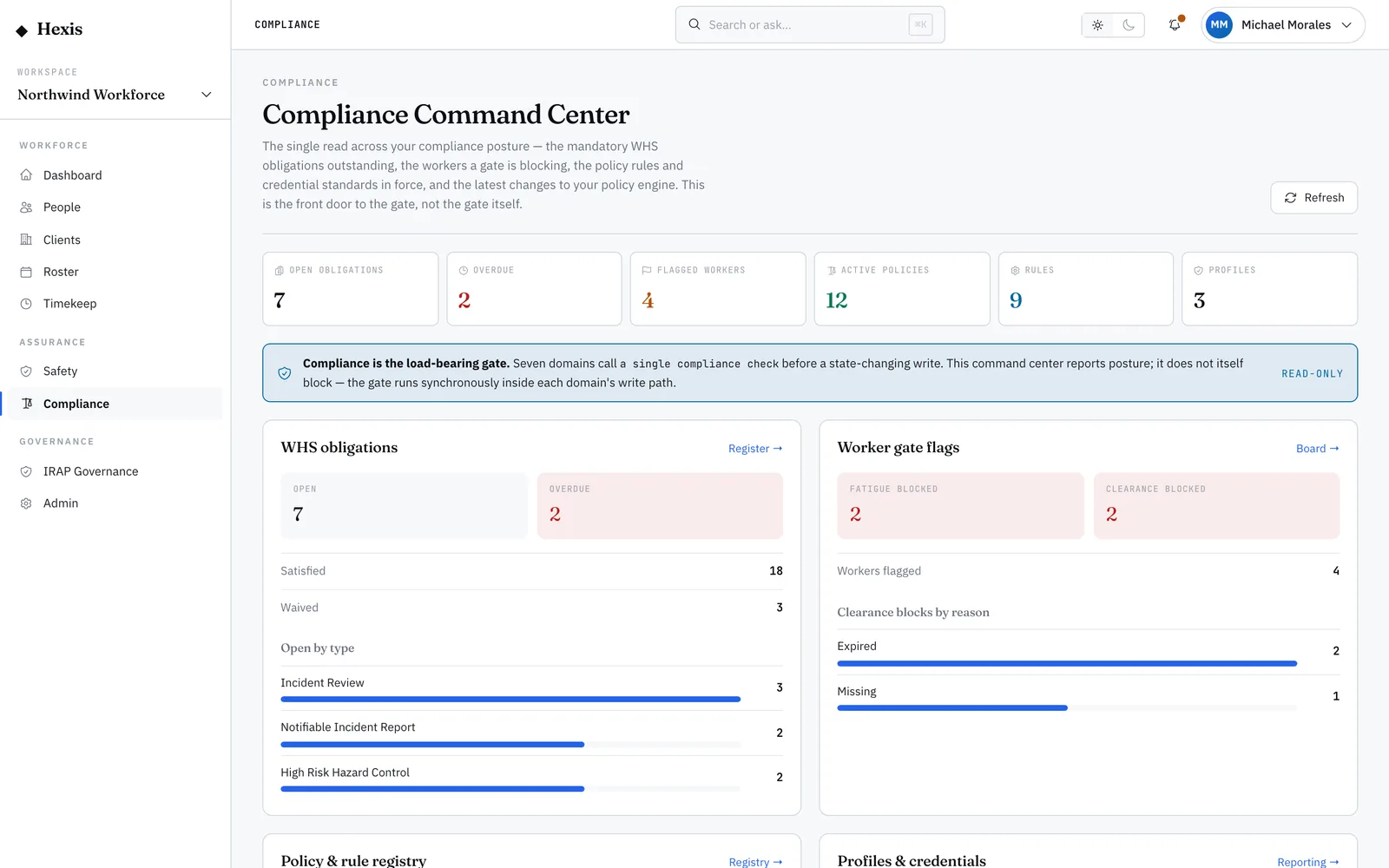
The policy registry is the depth view of every rule your organisation enforces. Each policy is one enforceable expectation within an industry profile — for example, "must hold current worker screening" inside a healthcare profile. The registry shows the policy, the profile it belongs to, and whether it is wired to actively block work or simply documents an expectation for the record.
The distinction matters. A blocking policy is one the platform checks before work happens — if the condition is not met, the worker cannot be placed. A documented policy records an expectation without stopping anything automatically. Reading the registry tells you exactly what is being enforced versus what is merely written down, which is the difference between a control and a note.
When to use it
- You want to see every policy and rule in force
- You need to know whether a policy actually blocks work or just documents it
- You are reviewing what a particular industry profile enforces
- You are preparing for an audit and need the rule catalogue
- You want to understand why a worker was blocked from a placement
How it works
Step by step.
- 1
Open the registry
Every policy is listed with its industry profile, what it requires, and its severity.
- 2
Read the profile
Each policy belongs to an industry profile. Filtering by profile shows you exactly what one industry enforces.
- 3
Tell blocking from documented
A blocking policy is checked before work and can stop a placement; a documented policy records an expectation without an automatic stop.
- 4
Inspect a policy
Open a policy to see the precise condition it enforces and how it maps to a check the platform runs.
- 5
Cross-reference a block
When a worker is blocked, the registry shows which policy did it and why, so you can explain or resolve it.
Worked example
Follow it through.
The scenario
A care worker was blocked from a Brightwater Health placement and you need to know which rule stopped it.
- 1 Open the policy registry and filter to the Healthcare profile.
- 2 Find the policy "Must hold current worker screening".
- 3 Confirm its severity is set to block, not document.
- 4 Open it to see that it checks for an active, verified screening clearance.
- 5 Cross-check the worker’s clearance record — their screening had lapsed.
The result
You can explain precisely why the placement was blocked, point to the policy that enforced it, and resolve it by renewing the lapsed screening.
Tips & notes
Good to know.
- Blocking and documented are not the same control — only blocking policies stop work; documented ones are expectations on the record.
- Filtering by industry profile is the fastest way to see what one type of work actually enforces.
- When you are puzzled by a block, the registry is where the answer lives — it names the rule and the condition.
- The registry is read-only depth: it shows what is enforced, while the attestation and audit surfaces show who has acknowledged and what has changed.
When you’re done
You can see every enforceable policy, tell a real block from a documented expectation, and trace any block back to the rule that caused it.