What it is
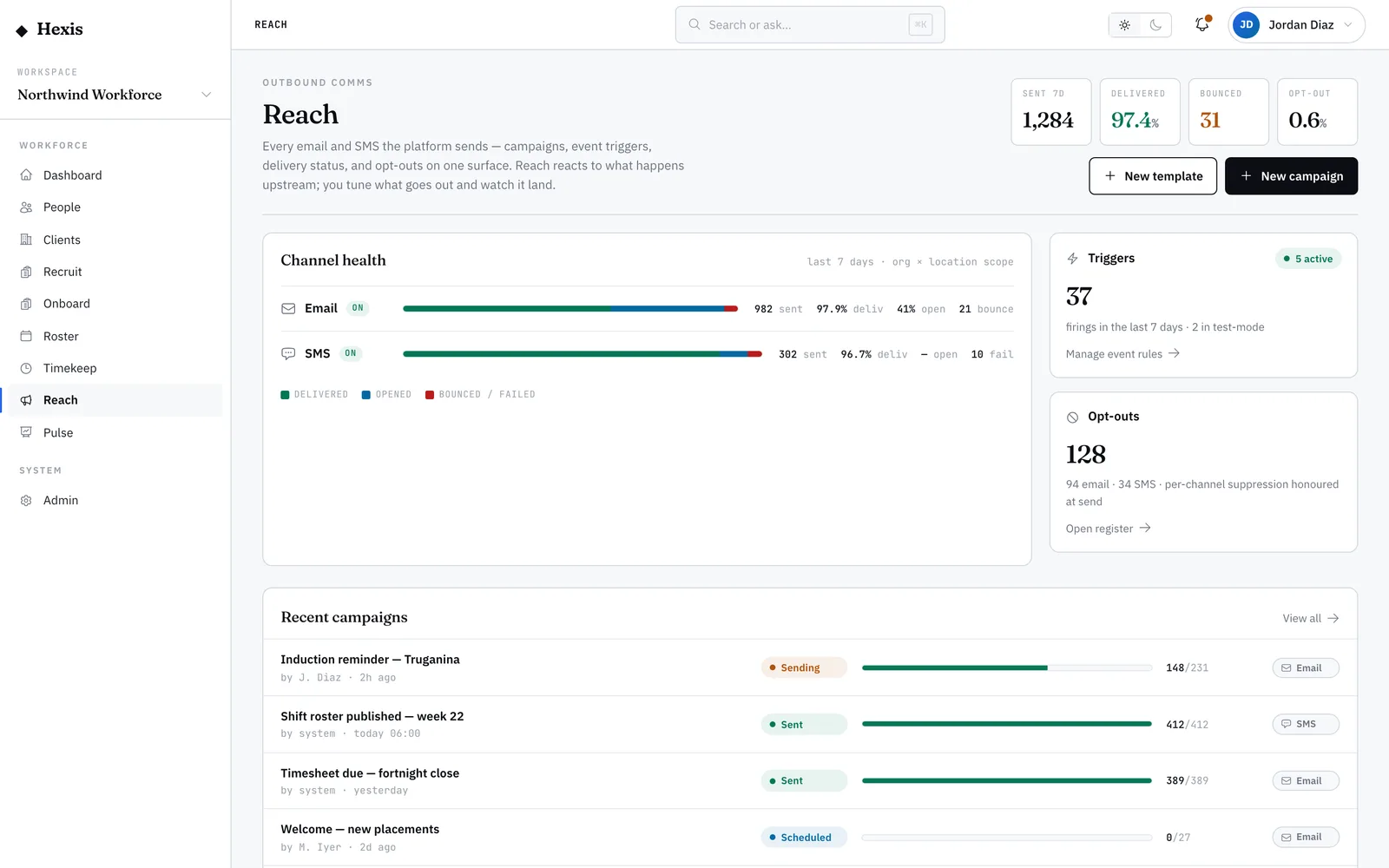
A trigger is a standing rule: when something happens in the workforce — an offer is accepted, a new worker is added — the matching message sends itself, no one in the loop. You bind the event to a template and an audience, set a throttle so the same person isn’t hit twice too fast, and Hexis honours opt-outs and renders each message automatically.
Triggers turn repetitive, time-sensitive comms into something reliable. Welcome messages, onboarding nudges, document chases — the things that get forgotten when everyone’s busy — happen every time, on time. A test mode routes the output to your own inbox first, and a kill switch stops everything instantly if a rule misfires, so you stay in control of the automation.
When to use it
- A message should always follow a specific event, like an accepted offer
- New workers should get a welcome without anyone remembering to send it
- You keep manually sending the same message after the same trigger
- You want onboarding nudges to fire on their own
How it works
Step by step.
- 1
Name the trigger
Give it a clear label you’ll recognise on the automation desk, like "Welcome new worker".
- 2
Choose the event
Pick the workforce event that fires it — an offer accepted, a worker created. When that happens upstream, the trigger evaluates.
- 3
Bind a template and audience
Select the active template to send and narrow the audience with filters so only the right people receive it.
- 4
Set a throttle and de-dupe
Set a minimum gap between sends to the same person, and rely on de-duplication so a replayed event never double-sends.
- 5
Test it
Switch on test mode to route the trigger’s output to your own inbox, confirm the message looks right, then turn it live.
- 6
Go live and monitor
Activate the trigger and watch it on the automation desk. The kill switch is there if you ever need to stop everything at once.
Worked example
Follow it through.
The scenario
Northwind Workforce wants every new worker to get a welcome SMS automatically.
- 1 Create a trigger named "Welcome new worker".
- 2 Choose the "Worker added" event.
- 3 Bind the "Welcome" SMS template; leave the audience as all new workers.
- 4 Set a throttle of one send per person per day.
- 5 Turn on test mode; add Jack Mason as a new worker and confirm the welcome lands in your test inbox, then switch it live.
The result
Every new worker now gets a welcome SMS the moment they’re added — opt-outs respected, no duplicates, no one having to remember.
Tips & notes
Good to know.
- Always test first — a misfiring trigger can message a lot of people fast; the test inbox catches it before they do.
- A throttle protects people from a burst of duplicate events; set a sensible minimum gap.
- De-duplication means a replayed event won’t re-send, so you don’t get apology emails after a system hiccup.
- The kill switch is per channel and per site — pull it to freeze a runaway rule instantly while you investigate.
When you’re done
A reliable, hands-off message that fires on the right event every time, with safeguards against double-sends.