What it is
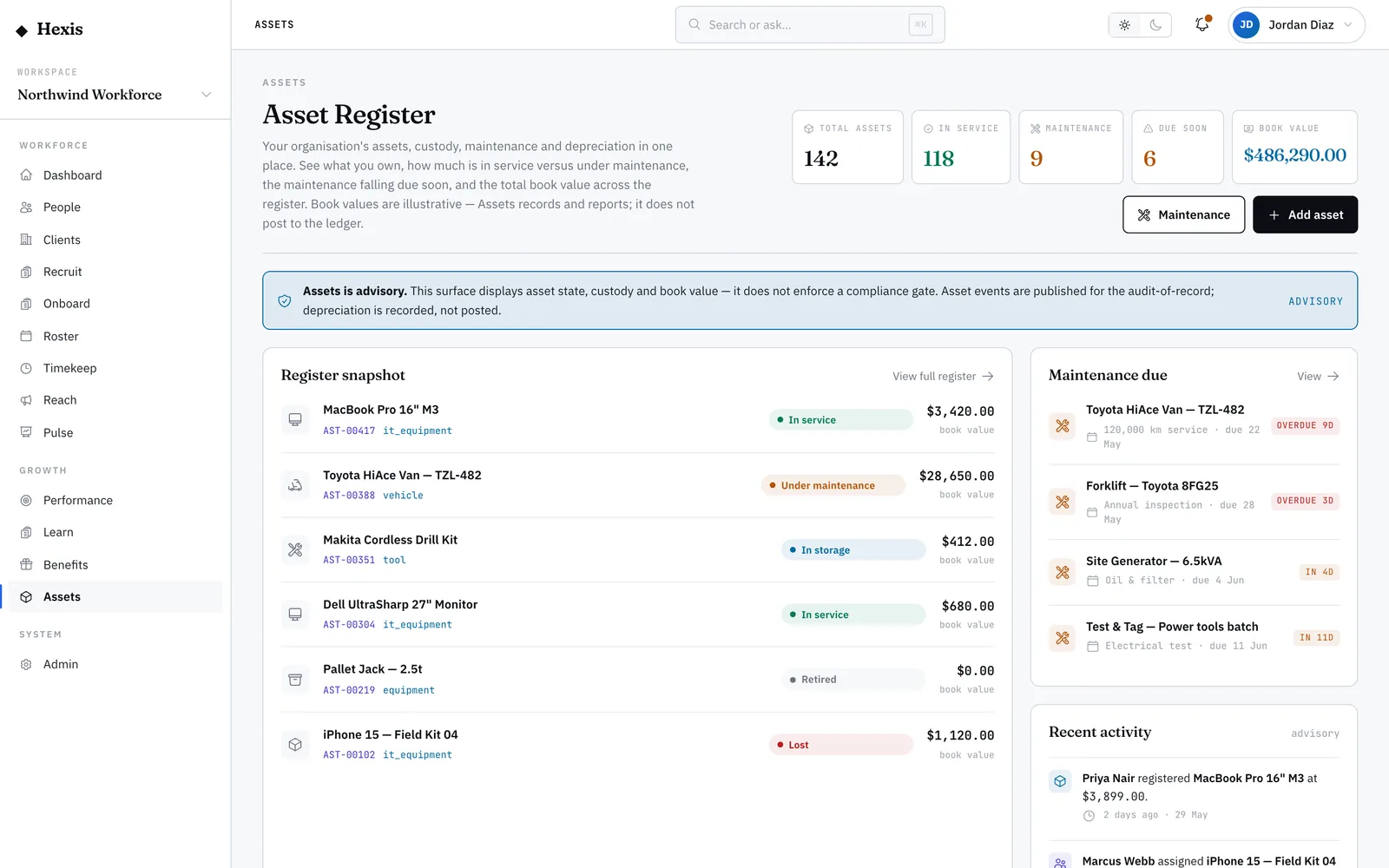
The asset register is the full list of every piece of equipment your operation owns — laptops, two-way radios, high-vis kits, forklifts, anything that is tracked and has a value. Each item carries an asset tag, a category, what it cost, what it is worth now, where it lives and whether it is in service, under maintenance or retired. The register is the single place you go to answer “what do we own?”
You will lean on it whenever the question is about the base itself rather than a single item: preparing for an audit, checking how much kit sits at one site, or finding every radio before a big mobilisation. Filters and column sorting let you cut a base of hundreds down to the handful you care about in a few clicks.
When to use it
- You need a complete, current list of what the operation owns
- An audit or stocktake is coming up and you want the numbers in one view
- You are looking for every item in one category or at one site
- You want to spot anything sitting in the wrong status before it costs you
How it works
Step by step.
- 1
Open the register
You land on the full table of every asset. Each row shows the name, tag, category, acquisition cost, current book value, status and site.
- 2
Apply a filter
Narrow by category, status or site. The table redraws to match, and each active filter shows as a pill so you can see at a glance what you are looking at.
- 3
Sort a column
Click a column header — value, cost or category — to order the list. Sort by book value to put your most valuable kit at the top.
- 4
Clear what you do not need
Remove any filter by clicking the X on its pill. Drop them all to return to the full base.
- 5
Open an item
Click any row to open its full record, where you can see its history and move it through its lifecycle.
Worked example
Follow it through.
The scenario
Northwind Workforce is prepping a stocktake of all radios held at Harbour Point Terminal.
- 1 Open the asset register; it shows 312 items across every site.
- 2 Filter category to “Two-way radio” — the list drops to 48.
- 3 Add a site filter for Harbour Point Terminal — now 16 radios.
- 4 Sort by status; one radio shows “Under maintenance”, the rest “In service”.
- 5 Note the asset tags for the 15 in-service radios for the physical count.
The result
A clean list of 16 radios at Harbour Point Terminal, one flagged at the workshop, ready to reconcile against the shelf count.
Tips & notes
Good to know.
- Filter pills stack — category plus status plus site together narrow to a precise slice.
- Sort by book value to find your high-value kit fast when you need to prioritise an audit.
- A status of “Under maintenance” explains a missing item before you raise it as lost.
- New equipment is added here with “Create asset”, so the register is always the source of truth for what exists.
When you’re done
A filtered, sorted view of exactly the assets you care about, each one a click from its full record.