What it is
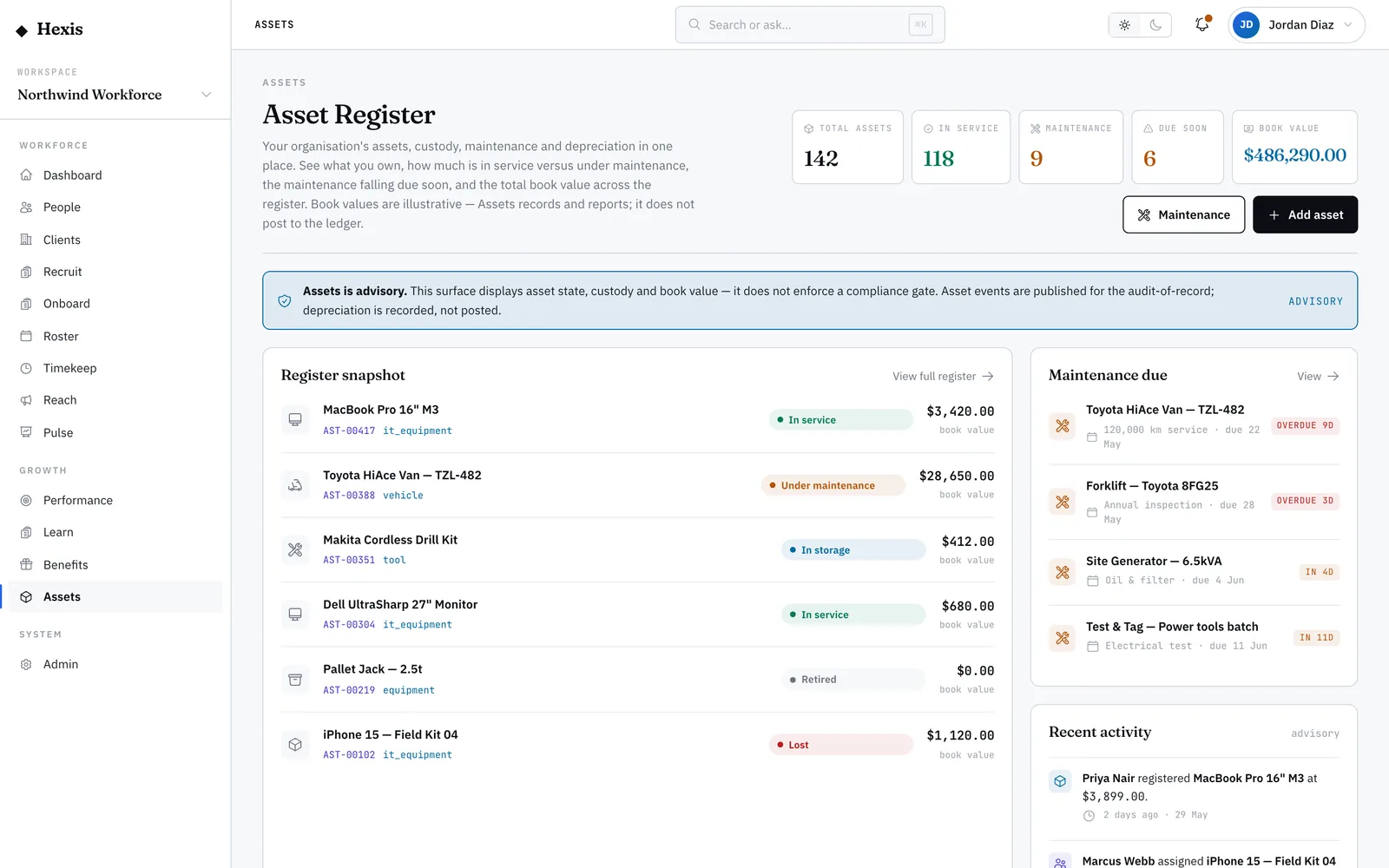
The asset record is the complete file on a single item. It answers, in one place, what it is, what state it is in, what it is worth, who has it, when it is next due for service, and the full trail of everything that has happened to it. It is also your workbench: from here you move the item through its life — into storage, off to maintenance, into retirement, through disposal, or flag it as lost.
This is where you go when a single item needs attention rather than the whole base. Every action you take is recorded on the history, so the record always explains itself — why an item is out of service, when it was serviced, who last held it. That trail is what makes audits and disputes quick to settle.
When to use it
- You need the full state and history of one specific item
- An item must change state — go to storage, maintenance, retirement or disposal
- A piece of kit cannot be found and needs to be marked lost
- You are confirming when an item was last serviced and who holds it now
How it works
Step by step.
- 1
Open the record
From the register or a search, open the item. You see its name, tag, category, status, value, current holder and next service date.
- 2
Read the history
Scroll the activity trail — assignments, returns, services and state changes — each one dated, so the record explains how it got here.
- 3
Choose a lifecycle action
The record only offers the actions its current state allows — for example send it to maintenance, place it in storage, or retire it.
- 4
Apply the change
Confirm the action. The status updates, the change lands on the history, and any knock-on — like clearing custody — happens with it.
- 5
Dispose or mark lost when needed
At end of life, dispose of the item to take it off the active base; if it is genuinely missing, mark it lost so the count stays honest.
Worked example
Follow it through.
The scenario
A forklift, AST-00417, used for Coastline Logistics at Docklands Distribution Centre develops a hydraulic fault.
- 1 Open AST-00417; status shows “In service”, current holder “Docklands Distribution Centre”.
- 2 Read the history — last serviced 12 weeks ago, no faults logged since.
- 3 Choose “Send to maintenance”; confirm.
- 4 The status flips to “Under maintenance” and the action lands on the history.
- 5 When the workshop returns it, log the service and set it back to “In service”.
The result
The forklift is correctly shown as under maintenance, the fault and service are on its permanent history, and reporting no longer counts it as available.
Tips & notes
Good to know.
- The history is the audit trail — never edit around it; use the lifecycle actions so the record stays truthful.
- Only valid next steps are offered, so you cannot, for example, dispose of an item that is still out with a worker.
- Marking an item lost is reversible in spirit — if it turns up, bring it back into service from the same record.
- The next-service date here is the one the maintenance schedule keeps current, so the two views always agree.
When you’re done
A single item correctly stated, its history complete, and its lifecycle moved with a clean record of why.