What it is
Bookings let you reserve a shared asset for a window rather than hand it to one person indefinitely. You pick the item, who it is for — a worker, a site or a client — the start and end of the window, and the purpose. A booking board rolls everything up into reserved, checked-out and closed counts so you can see the picture at a glance.
This is for kit that moves between jobs: a pool vehicle, a generator, a calibration kit. Because a window that overlaps an active booking is refused, you cannot accidentally promise the same item to two crews at once. The board turns “is the van free next Tuesday?” into a question you can answer in seconds.
When to use it
- A shared item is needed for a specific date range, not a permanent handout
- You need to know whether something is free before promising it
- Several crews compete for the same pool vehicle or piece of plant
- You want one view of what is reserved, out and returned
How it works
Step by step.
- 1
Open the bookings board
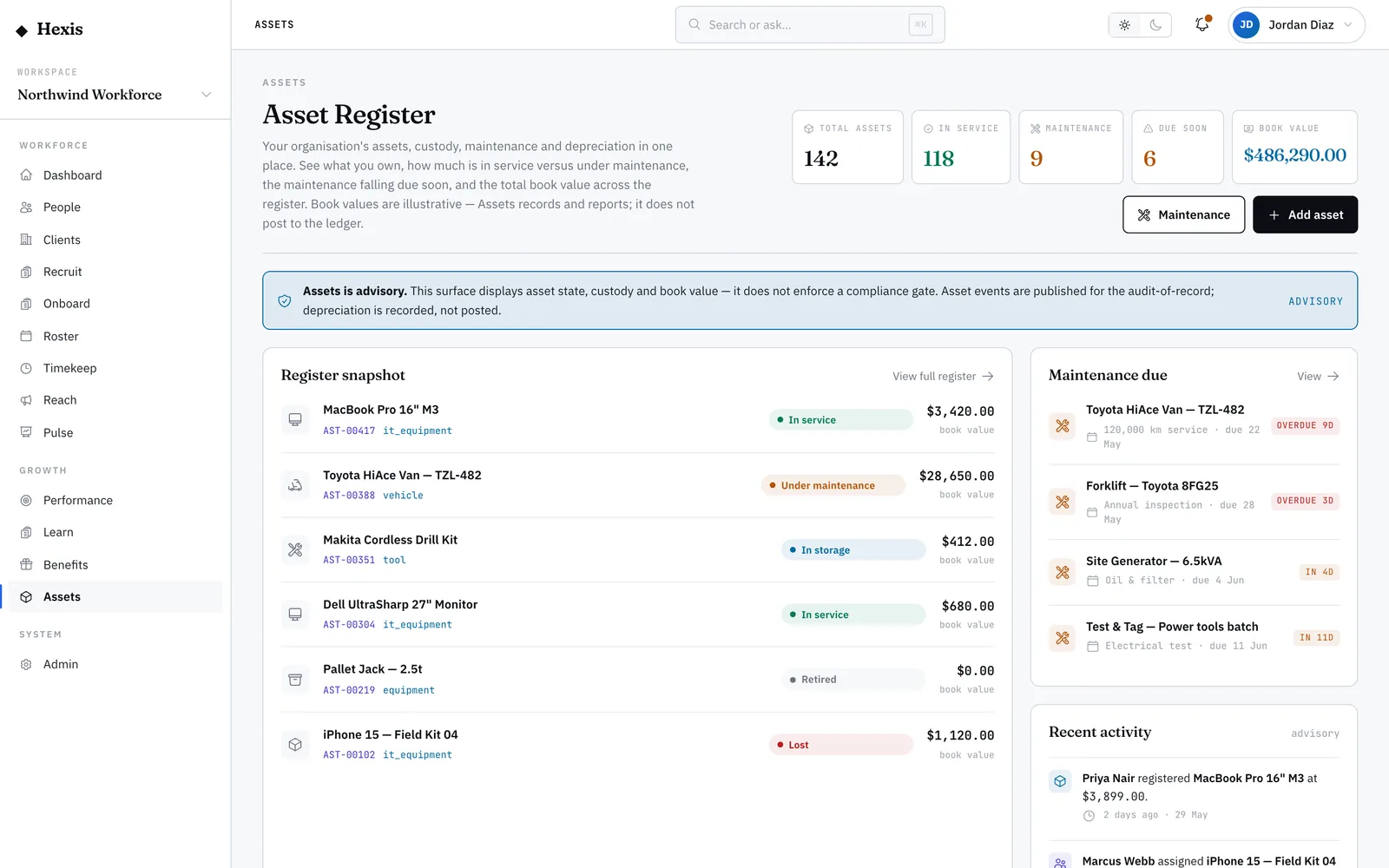
A four-tile rollup shows reserved, checked-out, closed and total bookings, so you start with the overall picture.
- 2
Start a reservation
Choose “Reserve an asset”. An inline form opens for the item, who it is for, the window and the purpose.
- 3
Set the window
Pick the start and end. If that window overlaps an existing active booking for the item, the reservation is refused so nothing is double-booked.
- 4
Confirm the booking
With a clear window, confirm. The item shows as reserved and the board count updates.
- 5
Check out and close
When the item is collected it moves to checked-out; when it comes back, close the booking to free it for the next reservation.
Worked example
Follow it through.
The scenario
Northwind Workforce needs the pool van for a Summit Events setup at Riverside Plaza next week.
- 1 Open the bookings board; the van shows no active booking for next week.
- 2 Choose “Reserve an asset” and select pool van AST-00301.
- 3 Set booked-for to the client Summit Events, window Tue 10 Jun to Wed 11 Jun, purpose “Event setup”.
- 4 Confirm — the booking is accepted and the reserved tile ticks up.
- 5 On Tue 10 Jun the driver collects the van and it moves to checked-out.
The result
The van is reserved for Summit Events across the two-day window, visible on the board, and locked against any clashing booking.
Tips & notes
Good to know.
- An overlapping window is refused on purpose — if a booking is rejected, check the board for the clashing reservation.
- Close a booking promptly when the item returns so the next reservation can start straight away.
- Booking is for shared, time-boxed use; for a permanent handout to one worker, use an assignment instead.
- The board mirrors the same reserved-out-closed shape you see elsewhere, so the counts read the same way everywhere.
When you’re done
A shared asset reserved for a clear window, protected from double-booking and visible on the board.