What it is
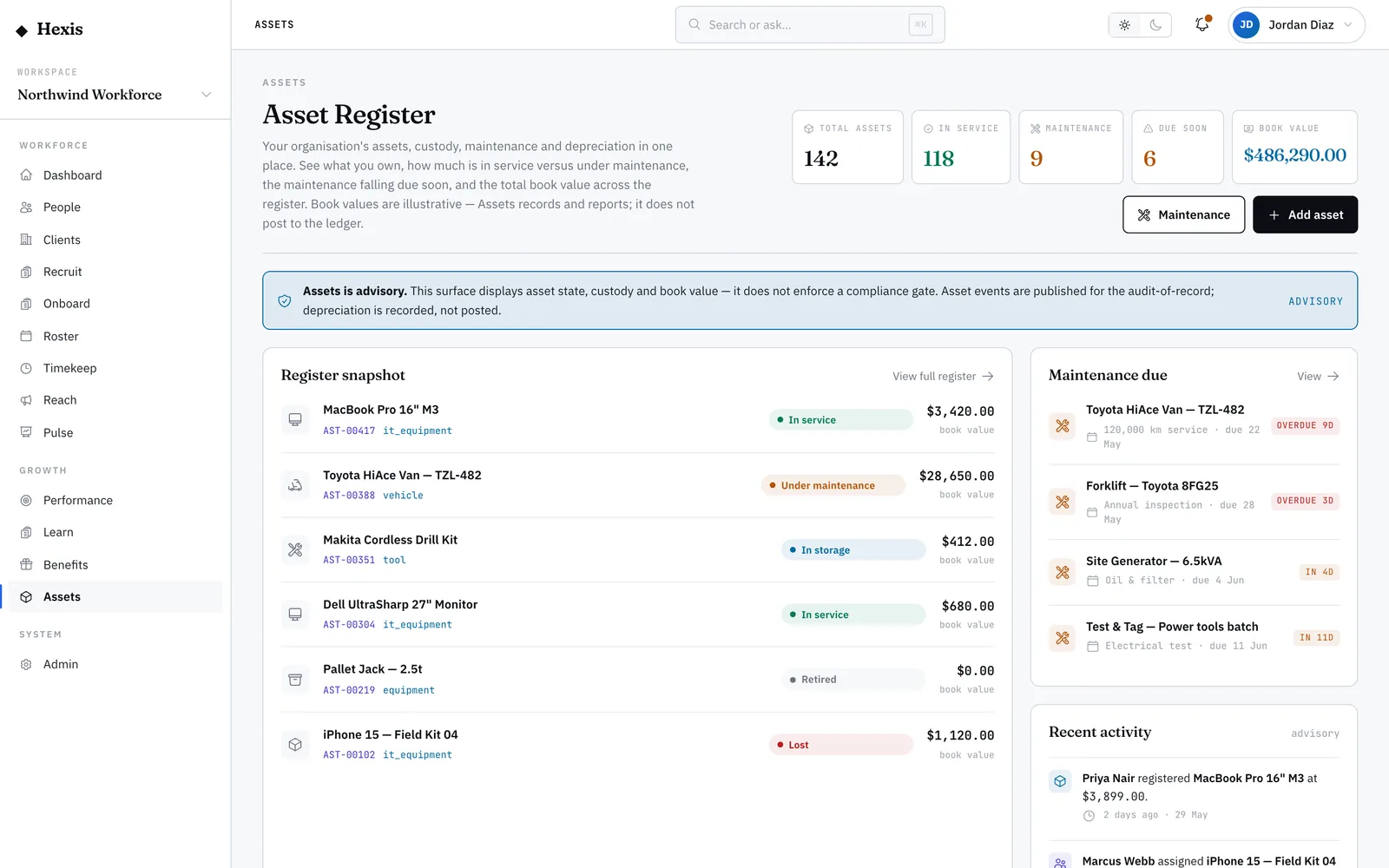
“My assets” is your own list of everything the operation has issued you — the radio, the PPE kit, the laptop, anything in your custody. Each item shows its name and tag, the category, the date you were assigned it, the condition it was issued in, and its current status. It is the worker-side view of the custody ledger, scoped to just you.
Check it whenever you need to know what you are responsible for. It settles questions before they become problems — what you must return at the end of a contract, whether a device was logged as yours, and what condition you accepted it in. If something on the list is wrong, that is the moment to flag it.
When to use it
- You want to see everything currently issued to you
- Your contract is ending and you need to know what to hand back
- You think an item is missing from, or wrongly on, your list
- You want to confirm the condition a device was issued in
How it works
Step by step.
- 1
Open “My assets”
You see a card for each asset currently in your custody — nothing that has already been returned.
- 2
Read each card
Every card shows the asset name, its tag, the category, the date it was assigned to you and the condition it was issued in.
- 3
Check the status
A status pill tells you whether the item is in service or, for example, flagged for maintenance.
- 4
Note what is due back
Use the list to plan your return — these are the items you are accountable for handing in.
- 5
Flag anything wrong
If something is missing or an item is listed that you never received, raise it with your coordinator straight away.
Worked example
Follow it through.
The scenario
Priya Nair, a Care Worker for Brightwater Health, wants to check what she has been issued.
- 1 Open “My assets” from your home view.
- 2 See three cards: a two-way radio, a tablet and a high-vis PPE kit.
- 3 The tablet card shows “Assigned Mon 2 Jun · condition out: New”.
- 4 Note all three are listed “In service”.
- 5 Confirm everything matches what you physically hold.
The result
Priya sees the three items she holds, with issue dates and conditions, and knows exactly what she must return.
Tips & notes
Good to know.
- Returned items drop off the list, so anything you still see is still your responsibility.
- The condition-out note is what you were issued — flag a mismatch early so you are not blamed later.
- Keep the list in mind near the end of a contract to avoid a last-minute scramble to return kit.
- If an item shows “Under maintenance”, your coordinator may have arranged a swap — check before you worry.
When you’re done
A clear, personal list of every item you hold, with dates and conditions, so you always know what is yours to return.