What it is
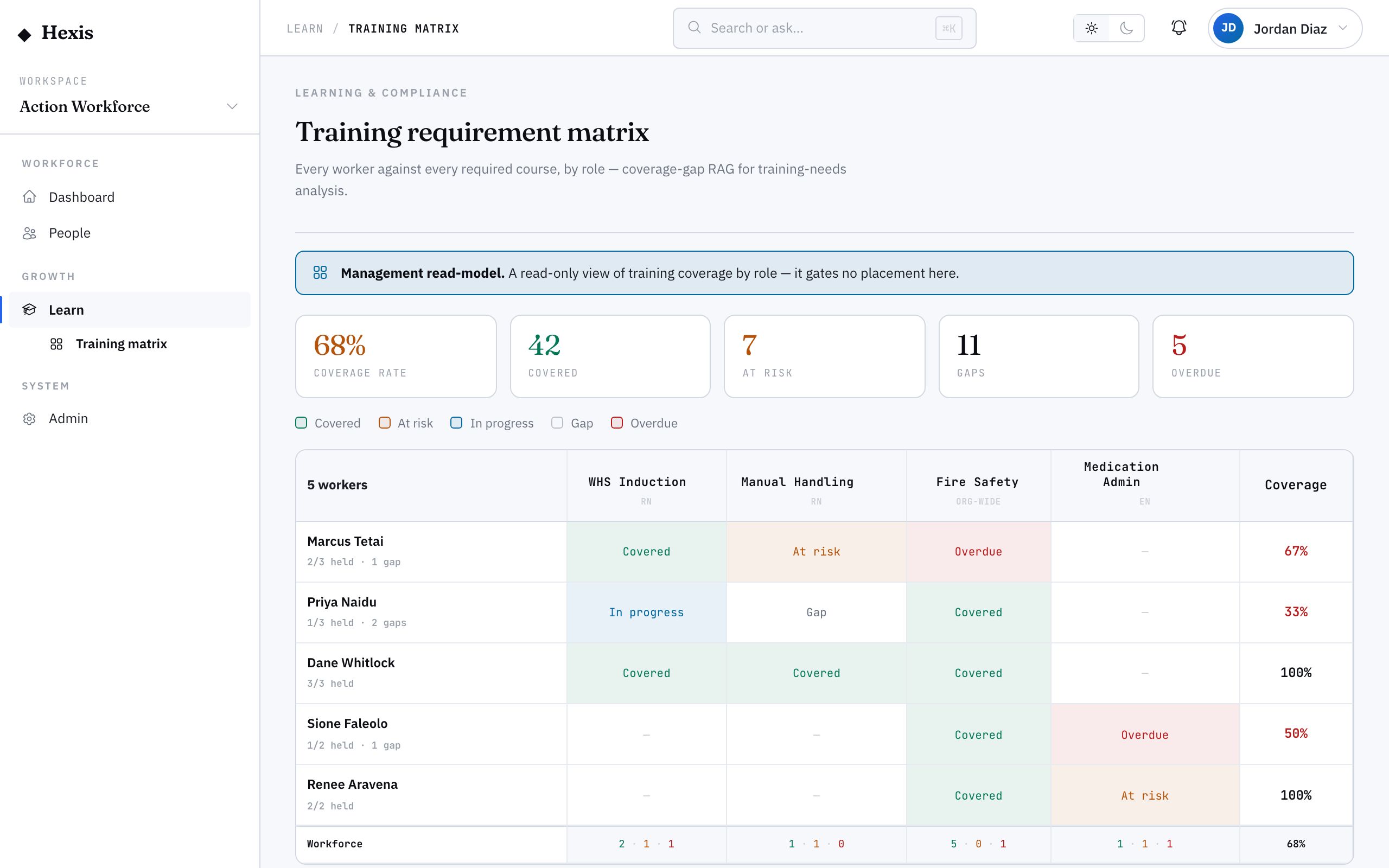
The competency matrix is a grid, not a list: workers down one side, required courses across the top, and a cell at every crossing showing whether that person holds that training. It answers the training-needs question at a glance — who is covered, who has a gap, and where a role is short.
It matters because compliance is a coverage problem, not a checklist. A role needs certain training; people drift in and out; tickets expire. A matrix turns that into a picture you can read in seconds, so you can target training exactly where it’s missing instead of assigning everything to everyone.
When to use it
- You want a single view of who holds what across a team or role
- You’re doing a training-needs analysis before a client audit
- You need to find the gaps for a specific role, not a person
- You’re deciding who to train next based on real coverage
- A client requires evidence that everyone on site holds the right training
How it works
Step by step.
- 1
Open the matrix
Open the competency matrix from the Learn admin area. Workers run down the rows, required courses across the columns.
- 2
Read the cells
Each cell shows whether the worker holds that training — held, missing, or expiring. Gaps stand out immediately.
- 3
Filter to a role or site
Narrow the grid to one role, team or client site so you’re looking at exactly the coverage that matters.
- 4
Spot the gaps
Scan columns for missing cells to find where a role is short, or rows to see which workers need topping up.
- 5
Act on a gap
From a missing cell, assign the relevant course to that worker, or assign the column’s course to everyone who lacks it.
Worked example
Follow it through.
The scenario
Before a Coastline Logistics audit, a workforce lead checks that every Warehouse Operator at Docklands holds the three required courses.
- 1 The lead opens the matrix and filters to Warehouse Operator at the Docklands Distribution Centre — eight workers.
- 2 Three columns show: site induction, manual handling, forklift licence.
- 3 Most cells are green, but the forklift column has two missing cells — Tom Okafor and Sofia Russo.
- 4 From the column, the lead assigns the forklift course to both, due before the audit date.
- 5 The two cells flip to in-progress as the workers start.
The result
The lead has a clear picture of coverage, has closed the two forklift gaps, and can show the audit that every operator is on track.
Tips & notes
Good to know.
- Read columns to fix a role, rows to fix a person — the same grid answers both questions.
- Expiring cells are amber, not red, so you can renew before they become real gaps.
- Filtering to a client site mirrors exactly what an auditor will check, so the matrix doubles as your audit prep.
- Assigning straight from a column closes a gap across everyone who lacks it in one action, rather than worker by worker.
When you’re done
You can see required-training coverage at a glance and close gaps precisely where they exist.