What it is
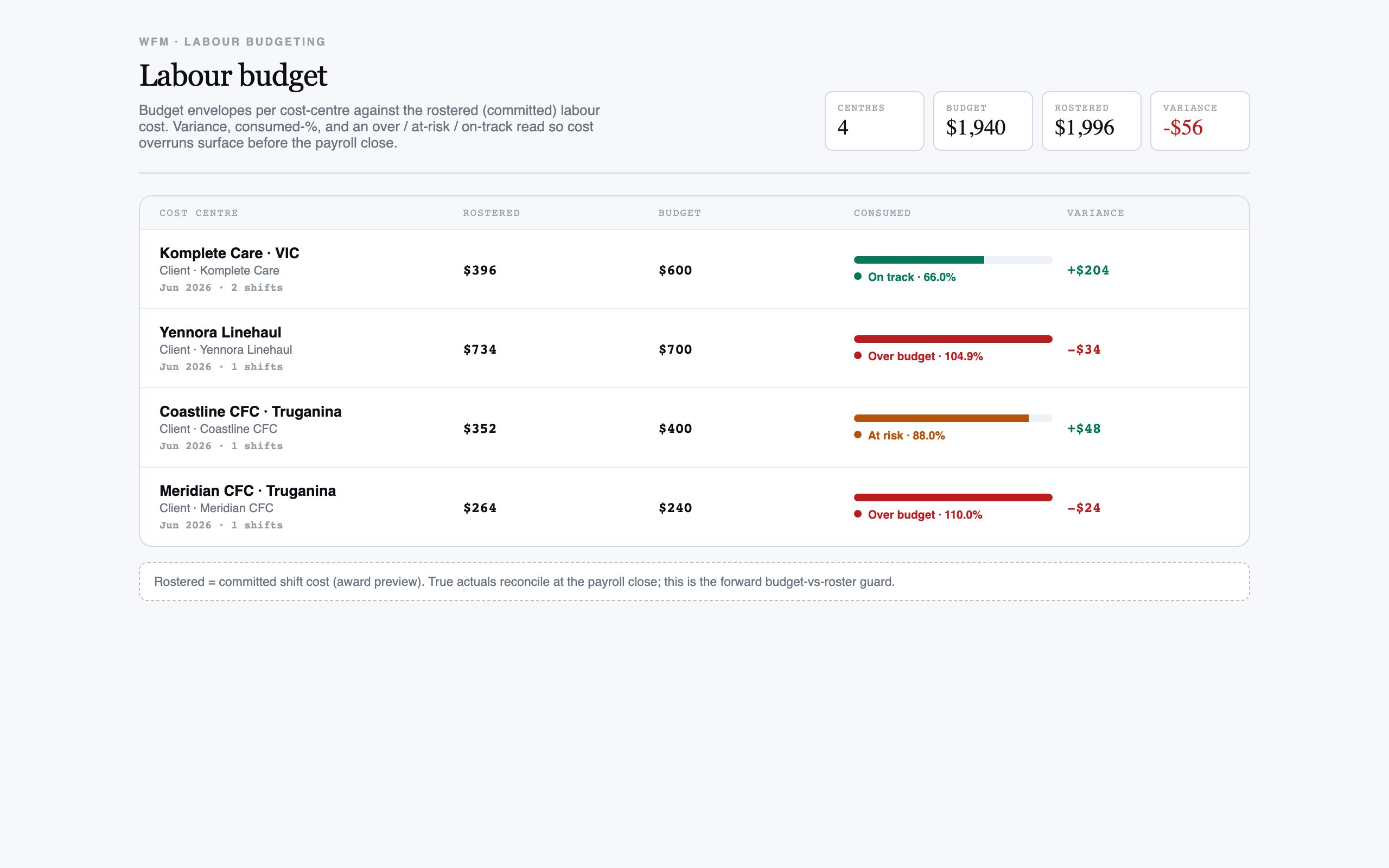
Where the forecast says how much labour you’ll need, the labour budget says what it should cost — and whether the roster you’ve committed is on track. Each cost centre, tied to a client, carries a budget for the period; the rostered cost is the live sum of the shifts you’ve scheduled against it.
A variance and a consumed bar show how much of the envelope you’ve used, coloured on-track, at-risk or over. Because it reads the committed roster, not the final pay run, you see an overrun forming while you can still trim or reschedule — not after the period closes and the cost is locked in.
When to use it
- You want to know if a client’s roster is within budget
- You’re scheduling a lot of overtime or allowances and want the cost check
- A period is filling up and you’re watching for an overrun
- You need to show a client their committed labour cost
How it works
Step by step.
- 1
Open the labour budget
See each client cost centre with its budget for the period and the live rostered cost beside it.
- 2
Read the variance
The variance is budget minus rostered — positive means headroom, negative means you’re over.
- 3
Check the consumed bar
The bar shows how much of the budget the committed roster has used, tinted on-track, at-risk or over.
- 4
Find what’s driving it
For a centre running hot, look at the shifts feeding the cost — extra hours, overtime or allowances often explain the climb.
- 5
Trim or reschedule
Adjust the roster — move, drop or re-time shifts — to bring a centre back inside its envelope before the period closes.
Worked example
Follow it through.
The scenario
Meridian Retail’s security roster for the fortnight has a budget of $48,000, and you want to know where it stands mid-period.
- 1 Open the labour budget and find the Meridian Retail cost centre.
- 2 Rostered cost reads $46,200 against the $48,000 budget — a variance of $1,800.
- 3 The consumed bar shows 96%, tinted at-risk.
- 4 You trace the climb to weekend overnight allowances on three extra shifts.
- 5 You re-time one weekend shift to a weekday, bringing rostered cost to $44,900.
The result
Meridian Retail’s consumed bar drops back to on-track with around $3,000 of headroom, and the overrun is corrected before any of it reaches a pay run.
Tips & notes
Good to know.
- This tracks the committed roster, not final actuals — final numbers settle after the period closes in time and attendance.
- Allowances and overtime are the usual culprits behind a centre running hot; check those shifts first.
- Treat at-risk as your line to hold — it’s much cheaper to trim now than to explain an overrun later.
- A healthy surplus may mean you can take on more work for that client without breaching the envelope.
When you’re done
A live, per-client view of committed labour cost against budget, with overruns caught while the roster can still be adjusted.