What it is
Most rosters repeat. The same client wants the same roles, at the same times, on the same days, week after week. A pattern captures that recurring shape once — the site, the role, the times and the recurrence — so you can generate the shifts forward instead of placing each one by hand.
The pattern library is where every recurring template lives, and each pattern can generate weeks ahead with a single action. Generation is safe to repeat: run it again and it fills any missing weeks and skips the ones already created, so you never end up with duplicate shifts.
When to use it
- A client’s roster repeats the same way every week
- You’re tired of rebuilding the same shifts by hand
- You want shifts created weeks ahead so workers have notice
- You need to keep a standing roster topped up as time moves on
How it works
Step by step.
- 1
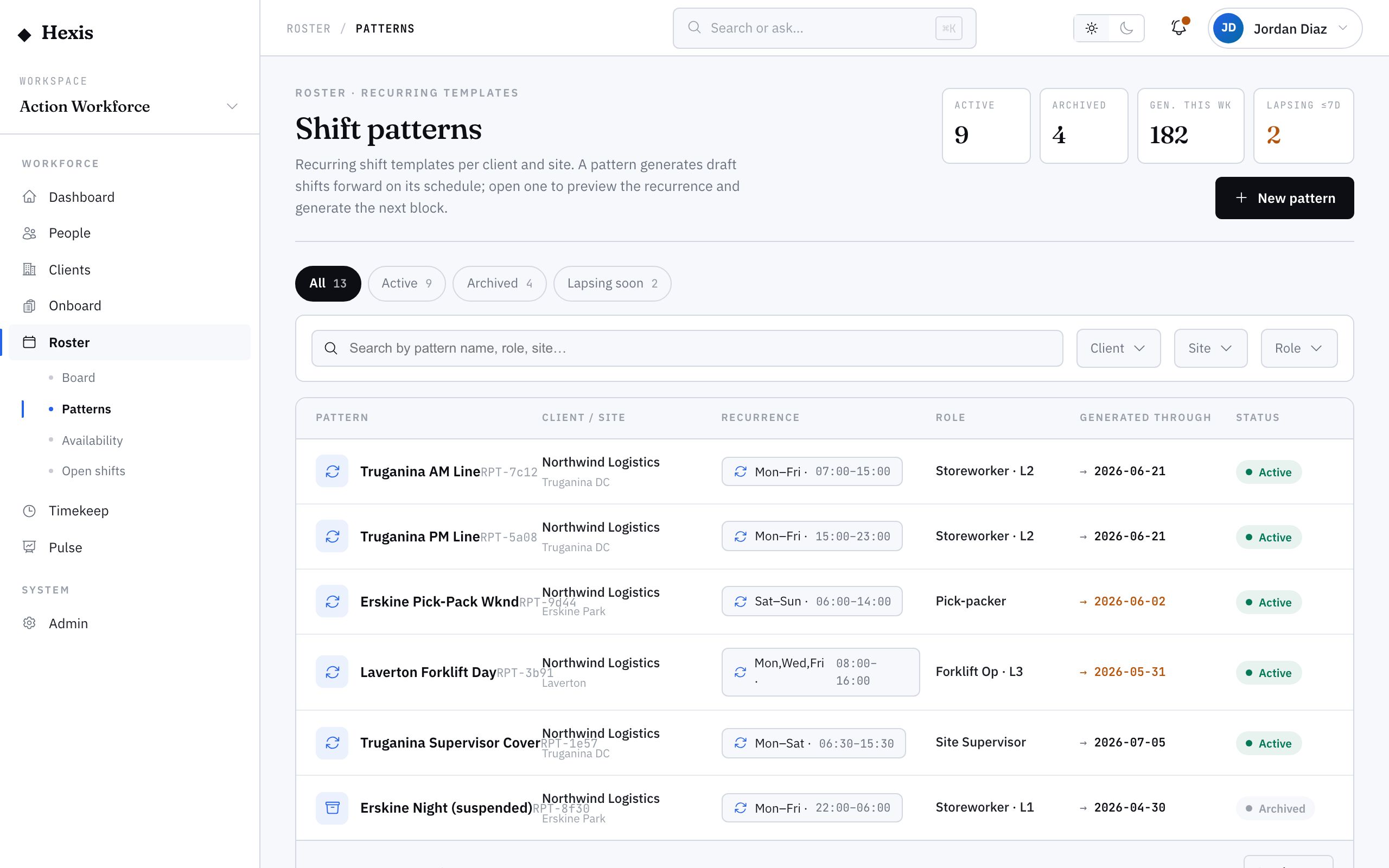
Open the pattern library
See every recurring template in one table, with the site each one schedules and how far ahead it has generated.
- 2
Open or create a pattern
Open an existing pattern to review it, or create a new one for a client whose roster repeats.
- 3
Set the recurrence
Define the role, times and which days it runs. A plain-English summary confirms the recurrence reads the way you intended.
- 4
Preview upcoming occurrences
Check the dated preview of upcoming shifts, each marked as already generated or still to generate, before you commit.
- 5
Generate forward
Pick a horizon — say the next eight weeks — and generate. Hexis reports exactly how many new shifts it will create and how many it skips as duplicates.
- 6
Review on the board
The generated shifts land as drafts on the roster board, ready for you to assign workers and publish.
Worked example
Follow it through.
The scenario
Meridian Retail wants two Security Officers at Harbour Point Terminal every weeknight, 18:00–02:00, on a standing basis.
- 1 Open the pattern library and create a pattern for Meridian Retail at Harbour Point Terminal.
- 2 Set the role to Security Officer, the window to 18:00–02:00, recurring Monday to Friday.
- 3 The summary reads "Weekdays, 18:00–02:00" — exactly right.
- 4 Preview shows the next four weeks of nights as "to generate".
- 5 Generate forward eight weeks; Hexis reports "80 shifts created, 0 skipped".
The result
Eight weeks of nightly Security Officer drafts appear on the board for Harbour Point Terminal, ready to assign and publish — built from one template instead of eighty placements.
Tips & notes
Good to know.
- Generation is idempotent — running it again just tops up missing weeks and skips ones already made, so you can’t double-book.
- Check the plain-English recurrence summary before generating; it’s the quickest way to catch a wrong day.
- Archive a pattern when the contract ends rather than deleting it, so the history of generated shifts stays intact.
- Patterns create drafts, not published shifts — you still assign workers and publish, so you stay in control of who works.
When you’re done
A reusable template generates weeks of draft shifts forward in one action, ready to staff and publish.