What it is
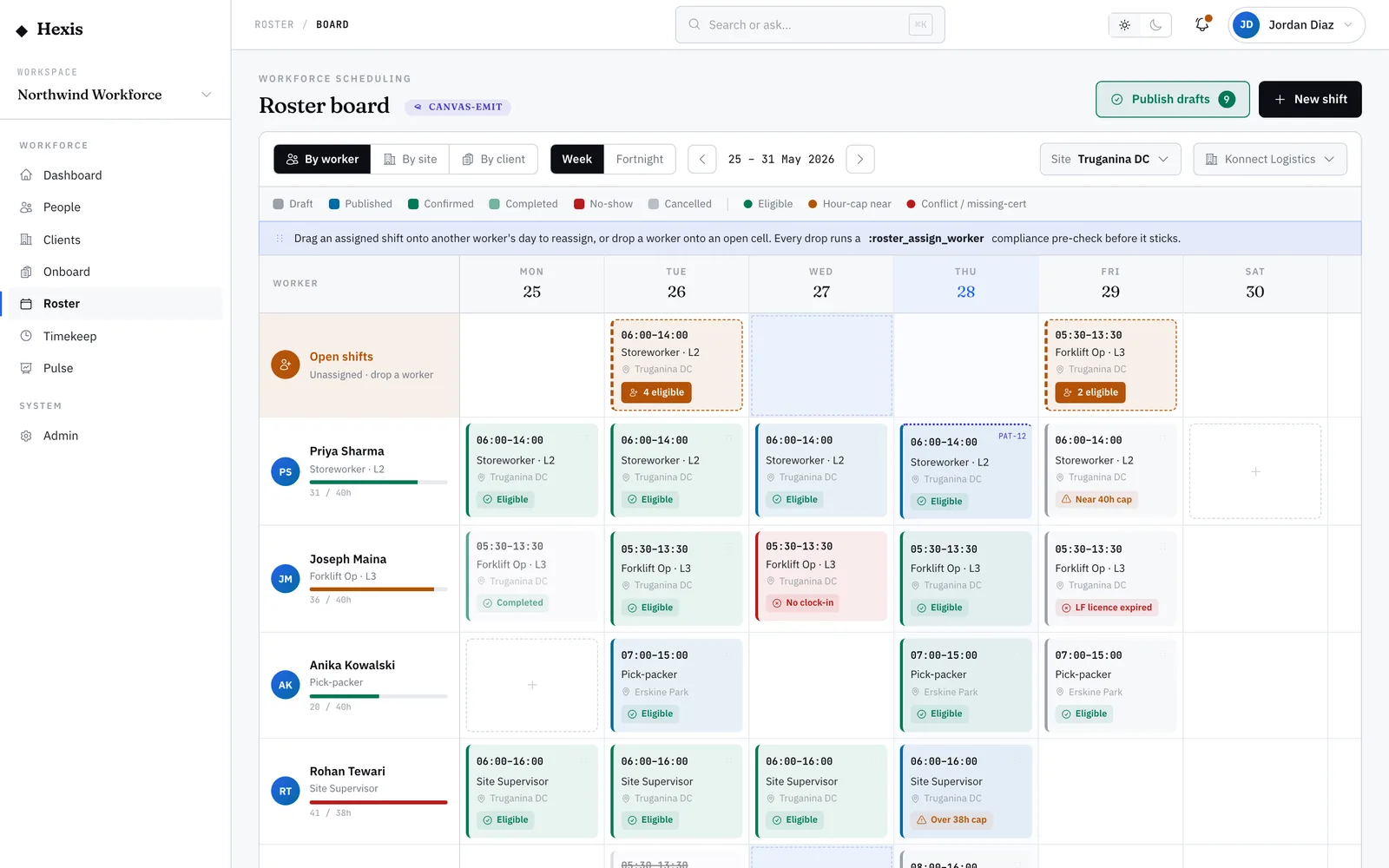
The roster board is the canvas you live in when you’re scheduling. Shifts show as cards on a grid — workers down one side, days across the top — so you can see the whole week at a glance, spot the gaps, and move work around without losing the shape of the plan.
You can pivot the grid to look at it by worker, by site or by client, and switch between a week and a fortnight. Each card carries its status and a red, amber or green eligibility flag, so coverage problems are visible before you publish rather than after the roster reaches the floor.
When to use it
- You’re scheduling a week or fortnight from scratch
- You want to see coverage across every site at once
- You need to move or reassign shifts after something changes
- You’re ready to publish a roster and notify your workers
How it works
Step by step.
- 1
Choose your view
Pick the week or fortnight, and pivot the grid by worker, site or client depending on what you’re balancing.
- 2
Place the shifts
Add shifts into the cells for the days and people you’re scheduling. Empty cells are open slots you still need to fill.
- 3
Read the flags
Each card shows its status and an eligibility flag. Green is good to go; amber needs a check; red can’t be published as-is.
- 4
Balance the load
Move shifts between workers or days to even out hours and close gaps. The grid updates as you go.
- 5
Clear the red flags
Reassign or fix any shift flagged red — an expired ticket, a clash or an hours-cap breach — so the whole week is clean.
- 6
Publish the roster
Publish the week. Workers are notified of their shifts, and any still-open slots drop into the queue to be filled.
Worked example
Follow it through.
The scenario
You’re building next week’s Cleaner roster for Brightwater Health at Riverside Plaza — five workers, Mon–Fri early shifts.
- 1 Open the board, set the range to next week and pivot by worker.
- 2 Place 06:00–10:00 Cleaner shifts for Priya Nair, Aisha Rahman and Liam Brennan across Mon–Fri.
- 3 Thursday shows two empty cells — that’s a coverage gap to fill.
- 4 Liam’s Friday card is amber: his hours are close to the weekly cap, so you move one shift to Sofia Russo.
- 5 Add the two Thursday shifts as open slots, then publish the week.
The result
The week is published, four workers are notified of their shifts, no card is flagged red, and the two Thursday slots are in the open-shifts queue ready to fill.
Tips & notes
Good to know.
- Pivot by client when you’re proving coverage to a single account; pivot by worker when you’re balancing hours.
- A red flag will stop a publish — fix or reassign it rather than overriding, so the roster stays compliant.
- Leave genuinely unstaffed slots as open shifts rather than forcing them — the queue finds eligible workers for you.
- Use the fortnight view when a client’s pattern runs over two weeks, so you can see the rotation balance.
When you’re done
A published week or fortnight of shifts, balanced and compliant, with every remaining gap routed to the open-shifts queue.