What it is
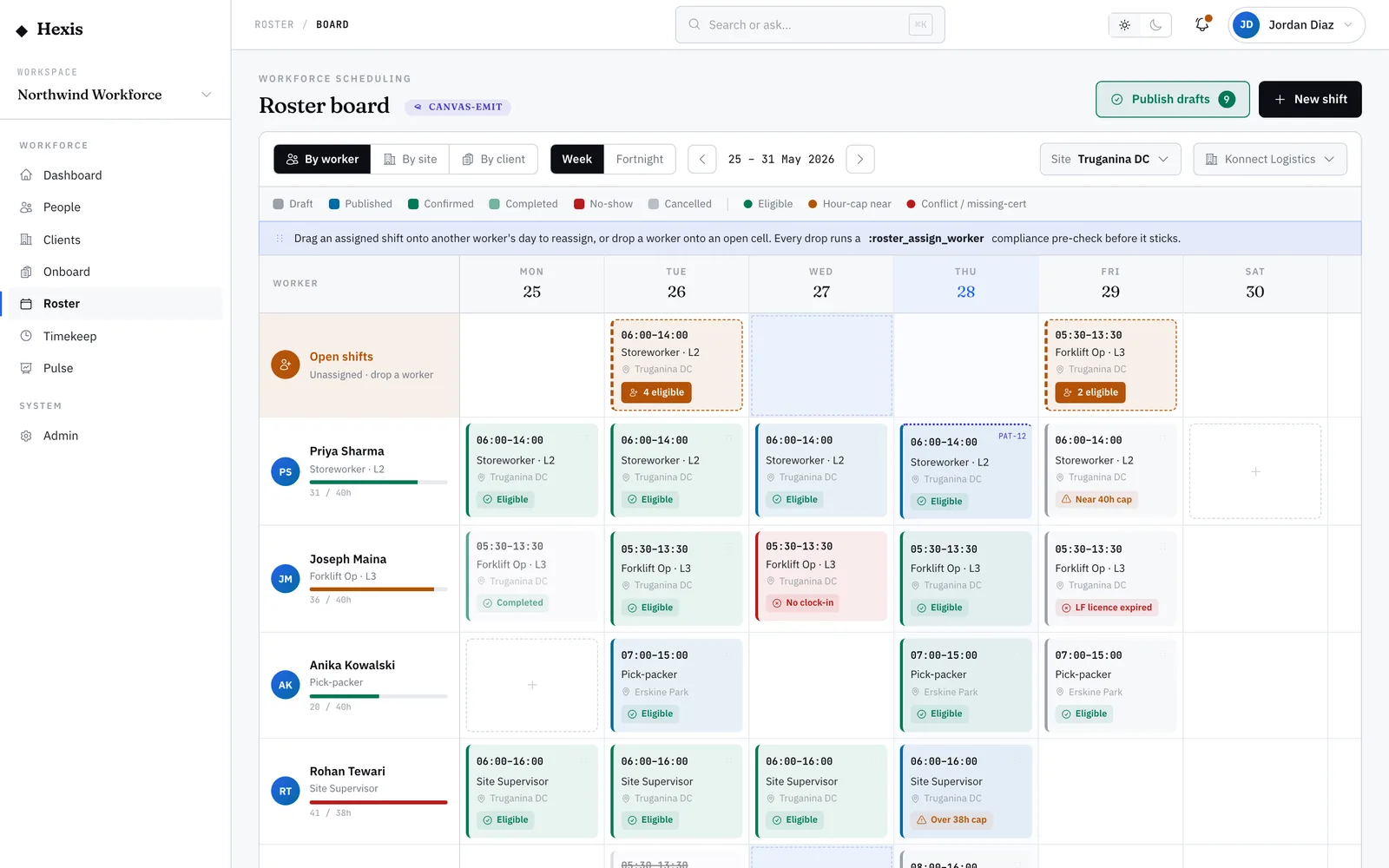
Sometimes you just need one shift: a one-off cover, an extra hand for a busy day, or a slot a client added at short notice. The new-shift form lets you build it from scratch — where it is, when it runs, what role it needs and how it pays — and assign a worker, or leave it open for the queue to fill.
As you fill the form, Hexis runs the same checks it would at publish: the worker has to be active, hold the right ticket, have no clashing shift, and stay under their hours cap. A side panel updates live, so you catch a problem while you’re still typing rather than after the roster goes out.
When to use it
- A client asks for a one-off shift outside the usual pattern
- You need to add cover for a single day
- You’re building a small roster by hand rather than from a template
- You want to draft a shift now and assign someone later
How it works
Step by step.
- 1
Open a new shift
From the roster board or the shifts list, choose to add a shift. It opens as a draft, so nothing is committed yet.
- 2
Set the placement
Pick the client and site the shift is for, and the role it needs. This drives which tickets and skills the assignment will require.
- 3
Set the schedule
Choose the date and the start and end time. The hours are worked out for you and feed the expected pay.
- 4
Add pay and allowances
Confirm the pay basis and any allowances for the shift. These flow through to the labour budget and, later, to pay.
- 5
Assign a worker (or leave it open)
Choose a worker and watch the compliance panel confirm they’re eligible — or leave the shift open and let the queue fill it.
- 6
Save the shift
Save the draft. When you’re ready, publish it so the worker is notified or, if it’s open, it lands in the open-shifts queue.
Worked example
Follow it through.
The scenario
Coastline Logistics needs one extra Forklift Operator at Docklands Distribution Centre on Wed 11 Jun, 06:00–14:00.
- 1 Open a new shift and set the client to Coastline Logistics, the site to Docklands Distribution Centre, the role to Forklift Operator.
- 2 Set the date to Wed 11 Jun and the window to 06:00–14:00 — eight hours.
- 3 Confirm the pay basis and add the early-start allowance.
- 4 Assign Daniel Cho; the side panel shows a green tick — current forklift ticket, no clash, under his cap.
- 5 Save the draft, then publish it.
The result
A confirmed eight-hour shift for Daniel Cho sits on the Wednesday board at Docklands, with its expected cost already counted against the Coastline budget.
Tips & notes
Good to know.
- Leave the worker blank to create an open shift — it goes straight to the queue and starts finding eligible people.
- A red flag on the panel blocks the assignment; an amber flag is a heads-up to check something before you publish.
- Drafts don’t notify anyone — build a few, then publish them together when the day is set.
- Allowances you add here carry through to the labour budget and pay, so set them now rather than fixing them later.
When you’re done
A single, fully-specified shift is on the roster — assigned and compliant, or open and ready for the queue to fill.