What it is
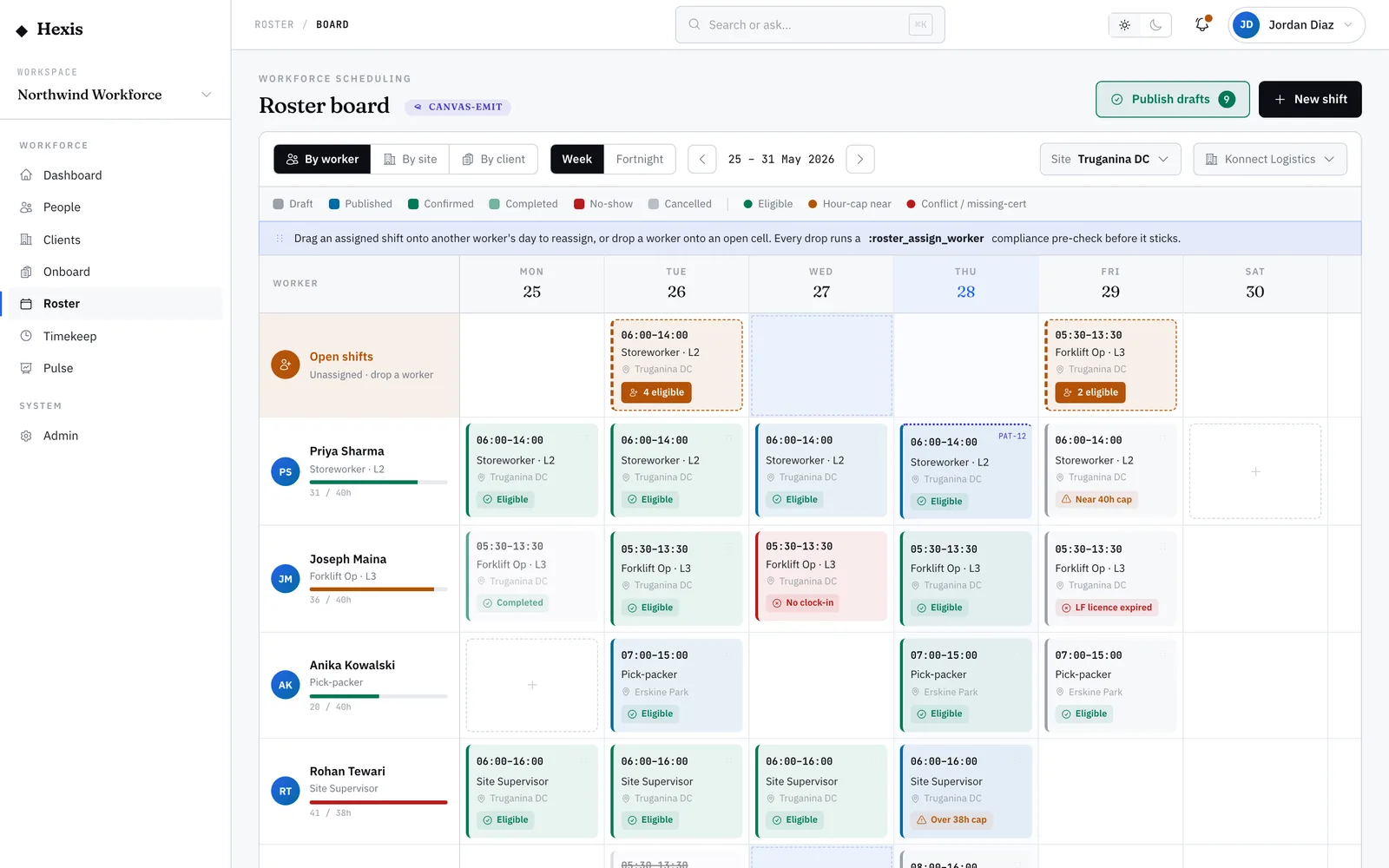
Availability is the map of when a worker can work. On a seven-day grid you mark windows as available, unavailable or preferred, and the roster reads them straight away — so the eligible lists, open-shift offers and the marketplace only ever show people who can genuinely take the shift.
Some of the grid fills itself. Approved leave is carried in automatically and shown as read-only, so you can see why a window is blocked without re-keying it, and workers can set their own availability from their phone. Keeping this accurate is what makes the rest of rostering trustworthy — every "eligible" really means available.
When to use it
- A worker tells you the days or times they can work
- Someone’s regular availability changes
- You want to mark preferred windows so the roster favours them
- You’re checking why a worker isn’t showing up as eligible
How it works
Step by step.
- 1
Pick the worker
Choose whose availability you’re editing and use the week navigator to scope the view to the right week.
- 2
Read the grid
The seven-day grid shows windows by colour — available, unavailable or preferred — and tags where each came from.
- 3
Mark a window
Set a window to available, unavailable or preferred. Preferred tells the roster to favour those times when it can.
- 4
Leave the carried-in blocks
Approved-leave windows are carried in and read-only — they explain a block without you having to re-enter it.
- 5
Save and check fit
Save the week. The roster picks up the change immediately, so the worker’s eligible shifts update on the spot.
Worked example
Follow it through.
The scenario
Priya Nair tells you she can now work weekday evenings but not Fridays, and prefers Tuesday and Thursday.
- 1 Pick Priya Nair and scope the grid to this week.
- 2 Mark Monday to Thursday evenings as available.
- 3 Mark Friday as unavailable.
- 4 Set Tuesday and Thursday evenings as preferred.
- 5 Save — and notice her approved leave next week is already carried in, read-only.
The result
Priya now shows as eligible for weekday-evening shifts, never offered a Friday, and surfaces first when a Tuesday or Thursday evening shift needs filling.
Tips & notes
Good to know.
- Preferred isn’t just a note — the roster favours those windows, so use it to honour a worker’s genuine preferences.
- Carried-in leave is read-only here; change leave where it’s approved and it updates the grid for you.
- Workers can set their own availability from their phone — what you see may already include their entries.
- If a worker isn’t turning up as eligible, this grid is the first place to check before anything else.
When you’re done
A worker’s real availability is recorded, so every eligible list and offer reflects when they can actually work.